

Introduction
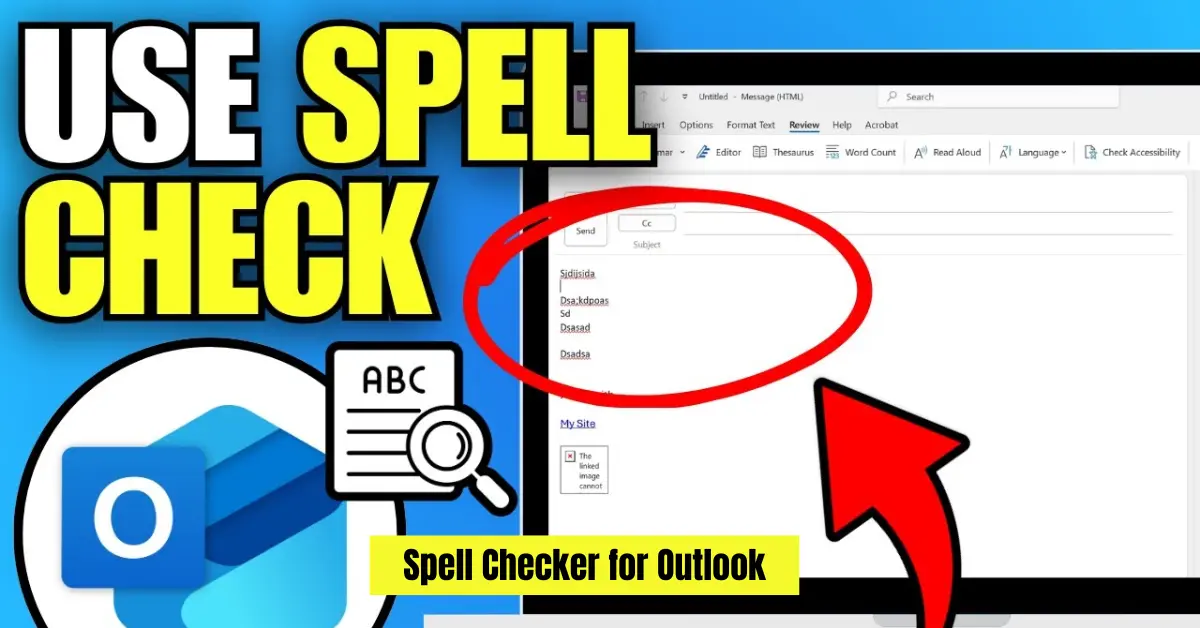
In today’s fast paced digital communication, writing clear and error free emails has become more important than ever. Whether you are sending a business proposal, a job application, or a simple message to a colleague, even small spelling mistakes can affect your professionalism. This is where the spell checker for Outlook plays an essential role by helping users identify and correct errors automatically while typing.
However, many users often face common issues where the spell check in Outlook is not working, missing, or not highlighting mistakes as expected. This can lead to frustration, especially when you rely on Outlook for daily communication and need quick email accuracy.
In this article, we will explain how Outlook’s spelling and grammar tools work, why they sometimes fail, and how you can fix them easily. You will also learn practical solutions to improve your writing experience using Outlook writing tools and ensure your emails always look professional and polished.
What is Spell Checker for Outlook
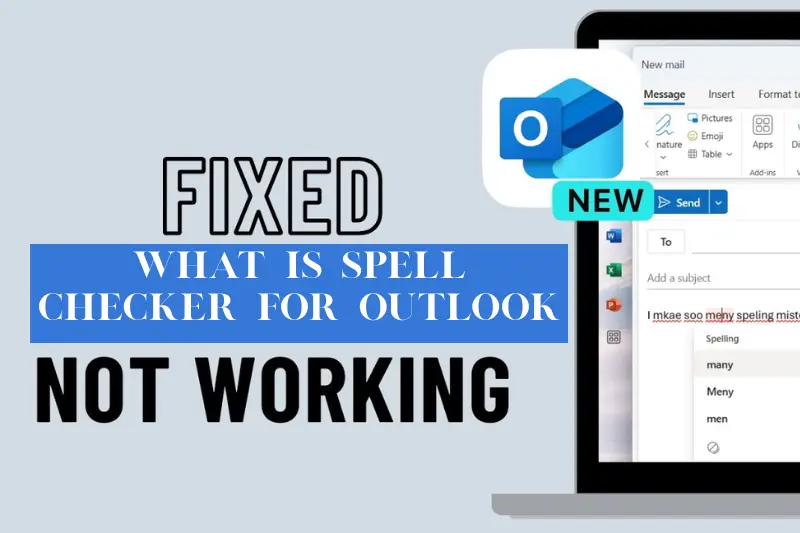
The spell checker for Outlook is a built in writing assistance feature designed to help users create error free and professional emails. It automatically scans your text while you type and highlights spelling and grammar mistakes so you can correct them before sending your message.
Outlook uses an integrated proofing system that checks words against a built in dictionary and language rules. When it detects a possible error, it underlines the word and suggests corrections, making it easier to maintain accuracy in both personal and professional communication.
Unlike basic typing tools, Outlook’s spell checker also works as part of its broader writing support system, which includes grammar suggestions and language improvements. This combination helps users communicate more clearly and avoid misunderstandings caused by simple writing mistakes.
Since Microsoft Outlook is widely used in business environments, these writing tools are especially important for maintaining professionalism in emails, reports, and client communication. When properly enabled, the spell checker ensures your writing stays polished, accurate, and easy to read.
How to Enable Spell Checker in Outlook
If the spell checker in Outlook is not working, it is often because the feature is disabled or not configured properly. The good news is that you can easily turn it on depending on the version of Outlook you are using.
For Windows Desktop Outlook
To enable spell check on the desktop version:
- Open Outlook and go to File
- Click on Options
- Select Mail
- Click on Spelling and AutoCorrect
- Make sure options like Check spelling as you type and Always check spelling before sending are enabled
This ensures that Outlook actively checks your email content while you write and before you send it.
For Outlook Web Version
If you are using Outlook in a browser:
- Spell checking is usually handled by your browser settings
- Make sure your browser’s spell check feature is turned on
- Also ensure the correct language is selected in Outlook settings
For Mac Outlook
On Mac devices:
- Go to Outlook menu
- Select Preferences
- Click Spelling and Grammar
- Enable Check spelling as you type
Once these settings are enabled, Outlook writing tools will automatically highlight mistakes and help you correct them in real time, improving overall email accuracy.
Why Spell Checker in Outlook May Not Work
Even though Outlook includes a built in spell checking feature, many users experience issues where it suddenly stops working or fails to highlight mistakes. This is usually not a serious error, but rather a settings or configuration issue that can be fixed easily.
One of the most common reasons is an incorrect language setting. If the proofing language does not match the language you are typing in, Outlook may ignore spelling errors. Another frequent cause is when the spell check option has been accidentally turned off in the settings.
In some cases, add ins or third party extensions can interfere with Outlook writing tools and prevent the spell checker from functioning properly. Using an outdated version of Outlook can also lead to missing or broken proofing features.
Many users also report issues like Outlook spell check not working after updates or when switching devices, which is often related to sync or configuration changes rather than a technical fault.
Understanding these causes is important because it helps you quickly identify why your email spelling correction Outlook feature is not behaving as expected and take the right steps to fix it.
How to Fix Spell Checker Problems in Outlook
If your Outlook spell checker is not working properly, you can usually fix it by adjusting a few settings or updating your system. Below are the most effective solutions to restore Outlook writing tools and ensure accurate email checking.
Check Proofing Language Settings
Sometimes Outlook does not detect errors because the wrong language is selected. Make sure the proofing language matches the language you are typing in. This simple fix often resolves most spelling issues.
Enable Check Spelling as You Type
Go to Outlook settings and confirm that Check spelling as you type is turned on. If this option is disabled, Outlook will not underline or highlight mistakes while writing emails.
Restart or Update Outlook
An outdated version of Outlook can cause issues with spell checker features. Updating to the latest version often restores missing functionality and improves performance.
Repair Microsoft Office Installation
If the problem continues, repairing Office can fix corrupted files that may affect spelling and grammar tools. This is especially useful when Outlook spell check not working issues persist across all emails.
Disable Conflicting Add ins
Some third party add ins may interfere with Outlook proofing tools. Try disabling them temporarily to see if the spell checker starts working again.
By following these steps, you can quickly fix most email spelling correction Outlook problems and restore smooth writing performance.
Advanced Tips to Improve Writing in Outlook
Once your spell checker is working properly, you can take your email writing to the next level by using a few advanced techniques inside Outlook writing tools. These tips help you write clearer, more professional, and more effective emails.
Use Grammar Suggestions Along with Spell Check
Outlook does not only correct spelling errors but also offers grammar suggestions. Pay attention to these hints because they help improve sentence structure, clarity, and tone, especially in professional communication.
Write in Simple and Clear Sentences
Even with a strong spell checker for Outlook, the best results come from simple writing. Short sentences reduce the chance of errors and make your message easier to understand.
Set the Correct Language for Every Email
If you switch between languages, always confirm that the correct proofing language is selected. This ensures Outlook can accurately detect spelling mistakes and provide relevant corrections.
Avoid Relying Completely on Automation
While email spelling correction Outlook tools are helpful, they are not perfect. Always review your email before sending to catch context related mistakes that automated tools may miss.
Combine Outlook with External Writing Tools
For more advanced writing needs, you can combine Outlook with AI writing assistants or grammar tools. This helps you create even more polished and professional emails.
Using these strategies will not only improve accuracy but also enhance your overall communication quality in Outlook.
Benefits of Using Spell Checker in Outlook
Using the spell checker for Outlook brings several practical advantages, especially for users who rely on email for daily personal or business communication. It is not just about fixing mistakes, but also about improving overall writing quality and professionalism.
Improves Professional Communication
Error free emails create a strong first impression. Whether you are communicating with clients, colleagues, or employers, correct spelling and grammar help you appear more reliable and professional.
Reduces Typing Errors
Even experienced writers make small mistakes while typing quickly. Outlook writing tools automatically detect these errors in real time, helping you correct them before sending the email.
Saves Time in Editing
Instead of manually proofreading every email, the spell checker quickly highlights issues so you can fix them instantly. This speeds up your workflow and improves productivity.
Enhances Clarity and Understanding
Correct spelling and grammar make your message easier to read and understand. This reduces the chances of miscommunication in both personal and business emails.
Builds Trust and Credibility
Well written emails reflect attention to detail. Over time, using email spelling correction Outlook tools helps you build trust with recipients and maintain a strong professional image.
Overall, the spell checker is a simple but powerful feature that supports better communication and reduces common writing mistakes.
Expert Advice for Better Email Accuracy
Even though Outlook provides strong built in spelling and grammar support, achieving consistently accurate and professional emails also depends on how you write and review your messages. Following a few expert practices can significantly improve your email quality.
Always Review Before Sending
Never rely completely on automation. Even with the spell checker for Outlook, take a few seconds to read your email before hitting send. This helps you catch context based mistakes that automated tools may miss.
Focus on Clear and Simple Language
Write in short, direct sentences. Simple language reduces the chance of errors and makes your message easier to understand, especially in professional communication.
Avoid Overloading with Complex Words
Using complicated vocabulary can increase the risk of spelling or grammar mistakes. Outlook writing tools work best when your writing is clean and straightforward.
Keep Your Outlook Settings Updated
Make sure your proofing tools are properly configured and updated. Many users experience issues like Outlook spell check not working simply because of outdated settings or software versions.
Combine Tools with Human Judgment
The best results come from using email spelling correction Outlook features alongside your own judgment. Technology helps, but human review ensures accuracy and context correctness.
By applying these practices, you can greatly improve the quality of your emails and reduce errors in everyday communication.
Frequently Asked Questions
What is spell checker in Outlook used for
The spell checker for Outlook is used to automatically detect and highlight spelling mistakes while you write emails. It helps ensure your messages are clear, professional, and free from basic typing errors.
Why is Outlook not correcting spelling
If Outlook is not correcting spelling, it is usually due to disabled proofing settings, incorrect language selection, or interference from add ins. In some cases, outdated versions of Outlook can also cause this issue.
How do I turn on grammar check in Outlook
You can enable grammar check by going to Outlook settings, opening the Spelling and AutoCorrect or Proofing options, and turning on grammar suggestions along with spelling checks. This activates Outlook writing tools for better email correction.
Does Outlook have automatic spell check
Yes, Outlook includes an automatic spell check feature. When enabled, it checks your text as you type and highlights errors instantly. It can also perform a final check before you send an email to ensure accuracy.
Why is my Outlook spell check not working even after enabling it
This can happen if the wrong language is selected, a software update changed settings, or an add in is blocking Outlook proofing tools. Restarting Outlook or repairing Office often resolves the issue.
Conclusion
The spell checker for Outlook is a simple but powerful feature that helps ensure your emails are accurate, professional, and easy to understand. From catching basic spelling mistakes to improving grammar and sentence clarity, it plays an important role in everyday communication.
Many common issues such as Outlook spell check not working or missing corrections are usually caused by incorrect settings, language mismatches, or outdated software. The good news is that most of these problems can be fixed quickly by adjusting Outlook writing tools or updating your system.
By properly enabling and using email spelling correction Outlook features, you can save time, reduce errors, and improve the quality of every message you send. Combining these tools with careful review and simple writing habits will help you maintain a strong and professional communication style.
In the end, Outlook’s built in proofreading system is not just about correcting mistakes it is about helping you communicate with confidence and clarity every time.
