

Introduction
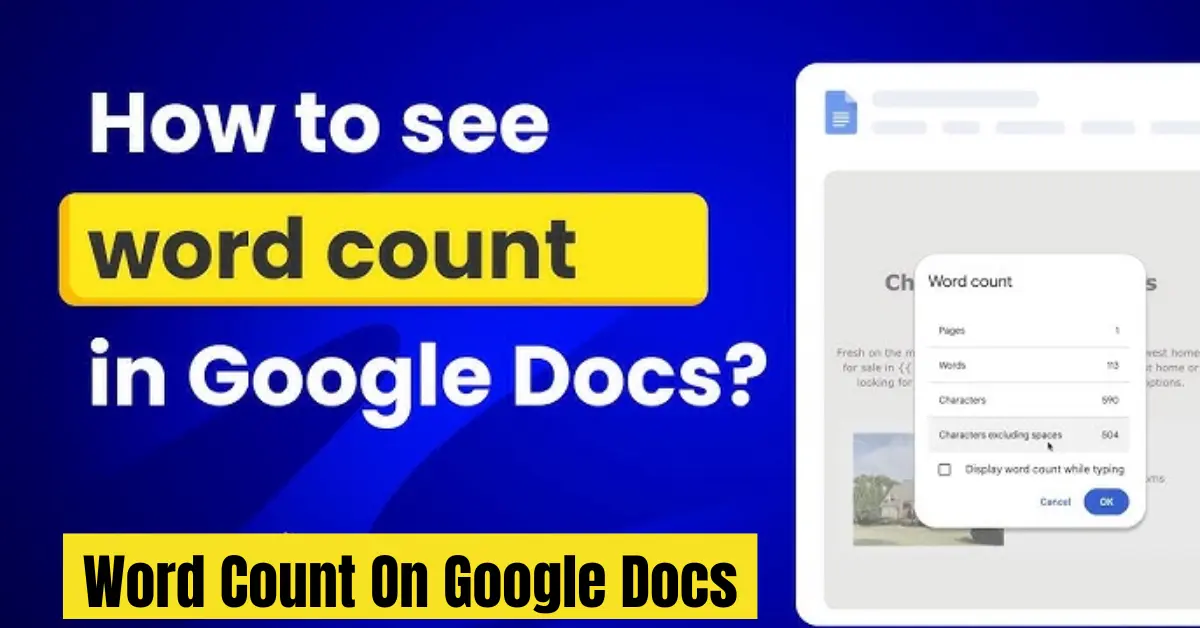
If you work with documents, assignments, or online content, knowing the word count on Google Docs is essential. Whether you are a student trying to meet an essay requirement, a blogger writing SEO articles, or a freelancer handling client projects, keeping track of your word count helps you stay within limits and improve writing efficiency.
Google Docs makes it easy to check word count with just a few clicks, but many users are not fully aware of where to find it or how to use it properly. In this guide, you will learn simple and practical ways to check word count, use shortcuts, and even track words while typing so you can manage your writing more effectively.
What Is Word Count on Google Docs
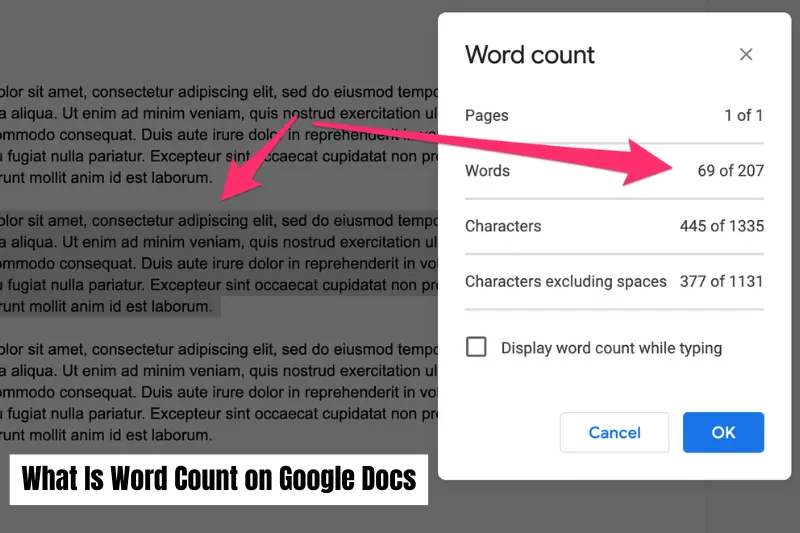
Word count on Google Docs is a built in feature that shows the total number of words in your document. It helps you understand the length of your content in real time, which is important for academic writing, blogging, SEO content creation, and professional documentation.
Along with words, it also provides additional details such as characters with spaces, characters without spaces, and the total number of pages. This makes it easier to measure not just how long your content is, but also how dense and structured it is.
For anyone who writes regularly, word count is more than just a number. It acts as a guide to maintain balance, meet requirements, and improve overall writing quality.
How to Check Word Count on Google Docs
Checking word count on Google Docs is very simple and takes only a few seconds. There are a few different ways to do it depending on how you prefer to work.
Method 1 Using the Menu Bar
The most common way is through the menu:
- Open your document in Google Docs
- Click on Tools in the top menu
- Select Word count from the dropdown
A small window will appear showing:
- Total words
- Characters
- Pages
This is the standard method most users rely on.
Method 2 Keyboard Shortcut
If you want a faster option, you can use a shortcut:
- On Windows: press Ctrl + Shift + C
- On Mac: press Command + Shift + C
This instantly opens the word count box without navigating menus, saving time during writing or editing.
Method 3 Word Count for Selected Text
Sometimes you don’t need the word count of the whole document, just a part of it:
- Highlight the text you want
- Open word count using the steps above or shortcut
- It will show word count for only the selected section
This is especially useful for SEO writers and students working on specific sections.
How to See Word Count While Typing
Google Docs also allows you to track your word count in real time while you are writing. This is very useful if you have a strict word limit or want to monitor your progress without checking repeatedly.
Enable Live Word Count
To turn this feature on:
- Open your document
- Go to Tools
- Click Word count
- In the popup window, check the option Display word count while typing
Once enabled, a small box will appear at the bottom of your screen showing live updates of:
- Total words
- Characters
- Pages
Why This Feature Is Useful
This real time tracking helps you:
- Stay within word limits for assignments or blog posts
- Avoid overwriting or underwriting
- Improve writing speed and focus
- Set daily writing goals more easily
Pro Tip for Better Writing Flow
Instead of checking word count repeatedly, use the live counter only when needed. Constantly watching numbers can distract your writing flow, so it is better to write first and then refine your content afterward.
Word Count on Google Docs Mobile App
You can also check word count on the Google Docs mobile app, whether you are using Android or iPhone. The steps are slightly different from desktop, but still very easy to follow.
On Android
To check word count on Android:
- Open the Google Docs app
- Open your document
- Tap the three dots (menu) in the top right corner
- Select Word count
A screen will appear showing:
- Total words
- Characters
- Pages
On iPhone
The steps for iPhone are very similar:
- Open the Google Docs app
- Open your document
- Tap the three dots (menu)
- Tap Word count
You will see the same detailed breakdown of your document length.
Mobile Tip
On mobile devices, word count is not shown in real time by default. So if you are writing long content, it is better to check it periodically using the steps above.
How to Check Word Count for Selected Text
Sometimes you do not need the word count of the entire document. Instead, you may only want to check a specific paragraph, section, or sentence. Google Docs allows you to do this very easily.
Steps to Check Selected Word Count
- Highlight the text you want to check
- Open the word count using Tools > Word count or the shortcut
- A small box will appear showing details only for the selected text
Why This Is Useful
This feature is especially helpful when you:
- Write SEO articles and need exact section lengths
- Work on assignments with paragraph limits
- Edit or rewrite specific parts of a document
- Compare different sections of your content
Quick Tip
If you frequently work with long documents, using selected word count can help you improve structure and balance your content more effectively without affecting the entire document analysis.
What Is Included in Google Docs Word Count
When you check the word count on Google Docs, it does more than just show the number of words. It gives a detailed breakdown of your text so you can understand your content better.
Here is what is included in the word count:
Words
This is the total number of actual words in your document. It counts everything that is separated by spaces.
Characters with Spaces
This includes every letter, number, punctuation mark, and space in your document. It is useful when you have character limits for forms or submissions.
Characters without Spaces
This counts all letters, numbers, and symbols but ignores spaces. Writers often use this for technical or SEO-related formatting needs.
Pages
Google Docs also estimates how many pages your content will take based on the current formatting. This is helpful for academic or report writing.
Why This Breakdown Matters
This detailed view helps you:
- Control content length more accurately
- Meet writing requirements easily
- Improve formatting and structure
- Plan SEO content more effectively
Tips to Manage Word Count Effectively
Managing word count is not just about hitting a number. It is about writing clear, structured, and meaningful content without unnecessary filler. Whether you are writing for school, blogging, or SEO, these tips can help you stay in control.
Set a Clear Word Goal Before Writing
Before you start writing, decide how many words you want to reach. This helps you:
- Stay focused
- Avoid unnecessary extra content
- Plan your sections better
For example, a blog post might need 1200 to 1500 words, while a short assignment may only need 500 words.
Break Content into Sections
Instead of writing everything in one go, divide your content into headings and subheadings. This makes it easier to:
- Track progress
- Balance word count across sections
- Improve readability
Avoid Repetition
Repeating the same idea in different words increases word count but reduces quality. Always try to:
- Say things once clearly
- Remove unnecessary sentences during editing
- Keep your writing direct and useful
Use Editing as a Final Step
First write freely, then edit your content. During editing:
- Remove extra words
- Fix long sentences
- Improve clarity and flow
Monitor Word Count While Writing
If you are working with strict limits, enable live word count in Google Docs. But use it wisely so it does not distract your writing flow.
Common Problems and Fixes
Even though checking word count on Google Docs is usually simple, users sometimes face small issues. Here are the most common problems and how to fix them quickly.
Word Count Not Showing
Sometimes the word count window does not appear when you try to open it.
Possible
fixes:
- Refresh your browser or reopen the document
- Make sure you are connected to the internet
- Try using the keyboard shortcut instead of the menu
Word Count Not Updating Properly
In some cases, the word count may seem stuck or not updating as you type.
Fixes:
- Click anywhere in the document to refresh focus
- Turn off and on the live word count feature
- Reload the document page
Mobile App Word Count Not Found
Some users struggle to find the option in the mobile app.
Fix:
- Tap the three dots menu inside the document
- Look carefully for the “Word count” option
- Make sure your app is updated to the latest version
Selected Text Not Showing Correct Count
If selected word count is not working correctly:
Fixes:
- Ensure text is properly highlighted
- Avoid selecting images or empty spaces
- Retry using the word count option after reselecting
Pro Tip
Most issues in Google Docs are temporary and related to browser or app glitches. A simple refresh or restart usually solves the problem.
Conclusion
Understanding the word count on Google Docs is essential for anyone who writes regularly, whether for academic work, blogging, or professional content creation. It helps you stay within limits, structure your writing better, and improve overall content quality.
With simple built in tools, you can quickly check total words, track selected text, or even monitor word count in real time while typing. Once you get used to these features, managing your writing becomes much easier and more efficient.
In the end, using word count properly is not just about numbers, it is about writing with clarity, purpose, and control.
