

Working in Excel often involves more than just numbers. Whether you are preparing reports, managing data, or creating lists, even small spelling mistakes can affect the overall quality of your work. This is where spell check in Excel becomes an essential tool.
Many users are not aware that Excel has a built in feature to detect and correct spelling errors, similar to what you see in word processors. Using spell check in Excel helps ensure your data looks professional, clear, and easy to understand. It is especially useful when working with text heavy sheets such as reports, dashboards, or client data.
In this guide, you will learn how to use spell check in Excel effectively, along with useful tips, shortcuts, and solutions to common issues. By the end, you will be able to reduce errors and improve the accuracy of your Excel work with confidence.
What is Spell Check in Excel and Why It Matters
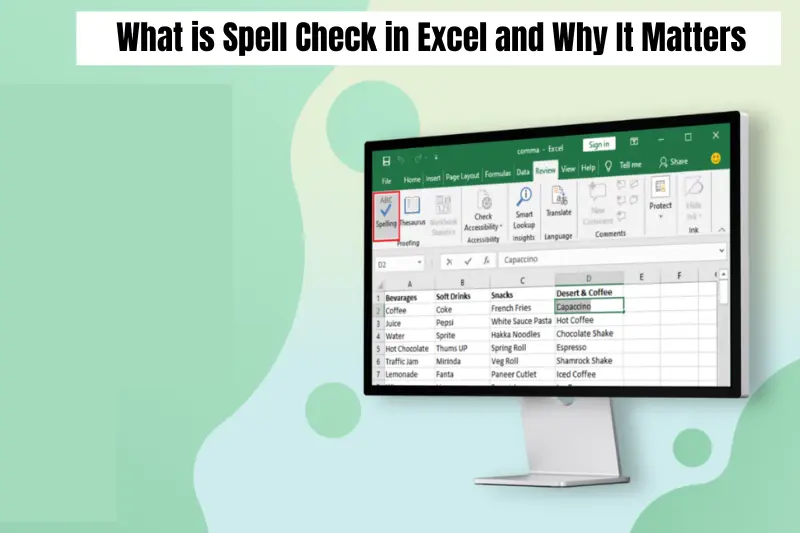
Spell check in Excel is a built in feature that helps you identify and correct spelling mistakes in your worksheets. While Excel is mainly used for numbers and calculations, it also handles a lot of text such as headings, labels, comments, and data entries. This makes accurate spelling just as important as correct formulas.
When you use spell check in Excel, the tool scans your selected cells or entire worksheet and highlights words that may be misspelled. You can then choose to correct, ignore, or add words to your custom dictionary. This simple process can significantly improve the quality of your work.
Using spell check in Excel matters for several reasons. First, it helps maintain a professional appearance, especially when sharing files with clients, colleagues, or stakeholders. Second, it improves clarity by ensuring that your data is easy to read and understand. Third, it reduces the chances of miscommunication caused by spelling errors.
In short, spell check in Excel is not just a basic feature. It is a practical tool that supports accuracy, professionalism, and better communication in your everyday work.
How to Do Spell Check in Excel Step by Step
Using spell check in Excel is simple, but knowing the right steps can save you time and effort. Below is a clear guide to help you check spelling efficiently.
Using the Built in Spell Check Tool
- Open your Excel worksheet.
- Select the cell or range where you want to check spelling.
- Go to the Review tab in the top menu.
- Click on Spelling.
- Excel will highlight any misspelled words.
- Choose from options like Change, Ignore, or Add to Dictionary.
You can repeat this process until all errors are reviewed.
Using the Keyboard Shortcut
A faster way to run spell check in Excel is by using the shortcut key:
Press F7 on your keyboard
This will instantly start the spell check process without navigating through menus, making it ideal for quick reviews.
Checking Spelling in Selected Cells
If you only want to check a specific part of your worksheet:
- Highlight the cells you want to review
- Run spell check using the Review tab or F7
Excel will only check the selected area, which is useful for large datasets.
Spell Check for Entire Worksheet
If no cells are selected, Excel will automatically check the entire worksheet. It scans from the active cell to the end of the sheet, ensuring full coverage.
Keyboard Shortcut for Spell Check in Excel
If you want to save time while working, using a keyboard shortcut is the fastest way to run spell check in Excel. Instead of navigating through menus, you can check spelling instantly with a single key.
Shortcut Key for Spell Check
The default shortcut for spell check in Excel is:
F7
Simply press F7 on your keyboard, and Excel will start scanning your worksheet for spelling errors. This works whether you have selected specific cells or want to check the entire sheet.
When to Use the Shortcut
Using the Excel spell check shortcut is especially helpful when:
- You are working on large datasets
- You need to quickly review text before sharing a file
- You want to avoid switching between tabs and menus Pro Tip for Faster Workflow
Before pressing F7, select only the cells you want to review. This prevents Excel from scanning unnecessary data and helps you focus on important sections.
Common Issues with Spell Check in Excel and How to Fix Them
Sometimes spell check in Excel may not work as expected. This can be frustrating, especially when you rely on it for accuracy. The good news is that most issues are easy to fix once you know what to look for.
Common Issues with Spell Check in Excel and How to Fix Them
Sometimes spell check in Excel may not work as expected. This can be frustrating, especially when you rely on it for accuracy. The good news is that most issues are easy to fix once you know what to look for.
Spell Check Not Working
One of the most common problems is when spell check does not detect any errors at all.
How to fix it:
- Make sure you have selected the correct cells or worksheet
- Check that Excel is not set to ignore certain words
- Restart Excel to reset temporary glitches Excel Skipping Words
At times, Excel may skip words that appear to be incorrect. This usually happens when those words are already added to the dictionary.
How to fix it:
- Review your custom dictionary settings
- Remove unnecessary words from the dictionary
- Run spell check again Wrong Language Settings
Spell check in Excel depends on the selected language. If the language is incorrect, it may not flag errors properly.
How to fix it:
- Select the cells you want to check
- Go to the Review tab
- Click on Language and set the correct proofing language Spell Check Stops Midway
Sometimes the spell check process may stop before completing the full worksheet.
How to fix it:
- Ensure there are no protected cells restricting access
- Unprotect the sheet if necessary
- Run spell check again from the beginning
Cells with Formulas Not Checked
Excel does not check spelling inside formulas, only visible text.
Solution:
- Double check text used inside formulas manually
- Keep labels and text outside formulas for better checking
Understanding these common issues will help you use spell check in Excel more effectively and avoid confusion during your work.
How to Change Language for Spell Check in Excel
Spell check in Excel depends heavily on the language settings you are using. If the wrong language is selected, Excel may miss errors or highlight correct words as mistakes. Setting the correct language ensures more accurate results.
Step by Step: Change Proofing Language in Excel
- Select the cells or worksheet where you want spell check to apply
- Go to the Review tab in the Excel ribbon
- Click on Language or Set Proofing Language
- Choose your preferred language from the list
- Click OK to apply the changes
Once updated, Excel will use the selected language for all future spell checks.
Why Language Settings Matter
Correct language settings improve accuracy because spell check in Excel is designed to compare words against a specific dictionary. If your worksheet contains English text but the language is set to another region, Excel may not detect errors properly.
Pro Tip for Better Results
If you work with multiple languages in Excel, set the language separately for different sections of your worksheet. This helps ensure spell check works correctly across all content.
Tips to Improve Accuracy in Excel Sheets
Using spell check in Excel is helpful, but combining it with good working habits can significantly improve the accuracy of your data. These practical tips will help you reduce errors and maintain clean, professional spreadsheets.
Keep Data Consistent
Consistency makes it easier to spot mistakes. Try to use the same format for names, titles, and labels throughout your worksheet. This helps spell check in Excel perform more effectively and reduces confusion in large datasets.
Review Data Before Running Spell Check
Do a quick manual scan of your worksheet before using spell check. This helps you identify obvious formatting issues or repeated errors that the tool might not catch.
Use Data Validation
Excel offers data validation features that restrict incorrect entries. For example, you can limit input to specific words or formats. This reduces spelling mistakes before they even happen.
Combine Spell Check with Manual Proofreading
While spell check in Excel is useful, it does not catch everything. Always take a final manual review of your sheet, especially for important reports or client documents.
Avoid Copy Paste Errors
Copying data from external sources can introduce hidden mistakes. After pasting content, always run spell check in Excel to ensure everything is accurate.
Organize Your Worksheet Properly
Well structured data is easier to review and less prone to errors. Use clear headings, separate sections, and proper alignment to make spell checking more effective.
Limitations of Spell Check in Excel
While spell check in Excel is a useful tool for catching basic spelling errors, it does have some important limitations that users should be aware of. Understanding these gaps helps you avoid relying on it too heavily.
It Does Not Check Grammar
One of the biggest limitations is that spell check in Excel only focuses on spelling. It does not detect grammar issues, sentence structure problems, or punctuation mistakes. This means a sentence can still be incorrect even if no spelling errors are shown.
It May Miss Technical or Industry Terms
Excel may not recognize specialized words, product names, or technical terms. In many cases, it will mark them as errors even when they are correct, unless they are added to the custom dictionary.
Limited Context Awareness
Unlike advanced writing tools, spell check in Excel does not understand context. It checks words individually, which can lead to incorrect suggestions or missed errors in complex sentences.
No Real Time Checking by Default
Unlike some word processors, Excel does not always highlight mistakes as you type. You usually need to run spell check manually using the Review tab or the F7 shortcut.
Does Not Review Formulas or Hidden Text
Spell check in Excel only reviews visible text in cells. It does not check spelling inside formulas or hidden content, which means errors in those areas can go unnoticed.
Why This Matters
Because of these limitations, it is important to combine spell check in Excel with manual proofreading and other validation tools. This ensures your final worksheet is accurate, complete, and professional.
Best Practices for Error Free Excel Work
To get the most out of spell check in Excel, it helps to follow a few simple best practices. These habits improve accuracy and reduce the chances of errors appearing in your worksheets.
Keep Your Data Clean from the Start
Start by entering data carefully and consistently. Avoid mixing formats for names, dates, or labels. Clean data reduces the workload for spell check in Excel and improves overall accuracy.
Use Spell Check Regularly
Instead of waiting until the end, run spell check in Excel at different stages of your work. This helps you catch mistakes early and prevents them from spreading across your worksheet.
Combine Multiple Excel Tools
Do not rely only on spell check in Excel. Use features like data validation, filters, and conditional formatting to catch different types of errors. Together, these tools create a stronger accuracy system.
Standardize Formatting
Use consistent fonts, styles, and alignment across your worksheet. A well organized sheet is easier to review and less likely to contain unnoticed errors.
Review Before Sharing
Always perform a final check before sending or publishing your file. Even after using spell check in Excel, a quick manual review can help you spot issues the tool might miss.
Maintain a Custom Dictionary
If you frequently use technical terms or names, add them to Excel’s custom dictionary. This reduces unnecessary error flags and improves the efficiency of spell check in Excel.
Conclusion
Spell check in Excel is a simple but powerful feature that helps improve the quality and professionalism of your spreadsheets. Whether you are working with reports, data lists, or business documents, it ensures that your text remains accurate and easy to understand.
However, as you have seen, spell check in Excel is not a complete solution on its own. It works best when combined with good data practices, manual proofreading, and other Excel tools. This balanced approach helps you avoid common errors and maintain high quality work.
