

Introduction
Many users rely on Microsoft Word every day for writing documents, reports, assignments, and professional work. One of its most useful features is the built in spell check tool, which helps identify and correct spelling mistakes automatically. However, a common issue that frustrates users is when the spell check is not working in Word, leaving documents unchecked and full of unnoticed errors.
This problem is more common than many people realize. Users often report that Word is not highlighting mistakes, underlining errors, or simply not performing any spell checking at all. In some cases, the feature seems to stop working suddenly, even if it was working fine before. This can create confusion, especially for students, writers, and professionals who depend on accurate writing.
The issue of word not spell checking usually happens due to incorrect settings, language configuration problems, disabled proofing tools, or occasional software glitches. The good news is that in most cases, it is not a serious problem and can be fixed quickly with the right steps.
In this article, we will explain the most common causes behind spell check not working in Word and provide simple step by step solutions to help you restore the feature and get your document checking back to normal.
What is Spell Check in Microsoft Word
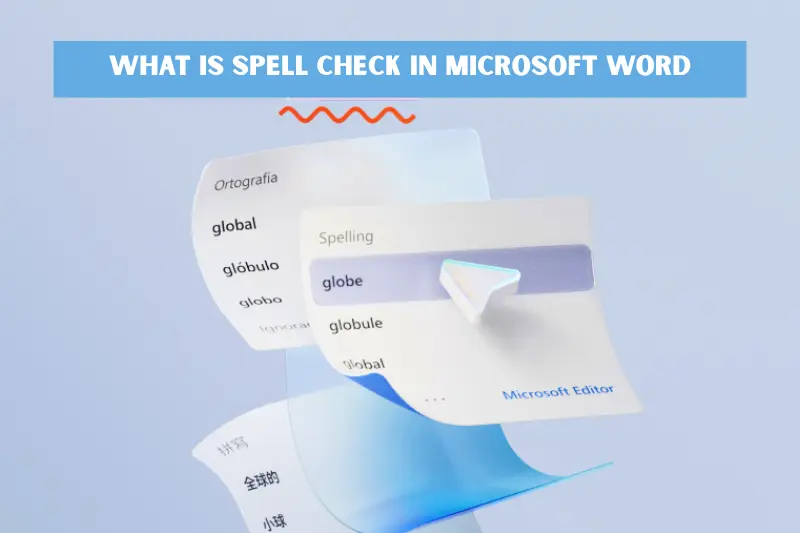
Spell check in Microsoft Word is a built in feature designed to help users write more accurately by automatically identifying spelling errors in a document. When it is working correctly, Word underlines misspelled words in red and may also suggest corrections, making it easier to improve writing quality without manually reviewing every line.
This feature is especially important for students, professionals, and content creators who need polished and error free documents. It helps save time, improves communication clarity, and reduces the chances of publishing or submitting incorrect text.
When users face issues like spell check not working in Word or Word not spell checking, it means this automatic review system is not functioning as expected. In such cases, errors may go unnoticed, which can affect the overall quality and credibility of the document. That is why understanding how spell check works is the first step toward fixing it and restoring proper functionality.
Main Reasons Why Spell Check Is Not Working in Word
When users experience spell check not working in Word or notice that Microsoft Word spell check is not working, it is usually not caused by a single issue. Instead, there are several common reasons that can stop the feature from functioning properly.
Incorrect proofing language settings
One of the most common causes is that the document language is set incorrectly. If Word is using the wrong language, it may not recognize spelling errors properly, which leads to word not spell checking issues.
Spell check feature is disabled
Sometimes the automatic spelling and grammar checking option is turned off in settings. When this happens, Word will not underline or detect mistakes at all.
Document marked as no proofing
If a document is set to “Do not check spelling or grammar,” Word will ignore all errors. This setting is often enabled accidentally, especially when copying text from other sources.
Microsoft Word settings are corrupted
In some cases, internal settings of Microsoft Word may become corrupted, causing the spell check tool to stop working correctly or behave unexpectedly.
Add ins or extensions interfering
Certain add ins can conflict with Word’s built in tools, resulting in word spell check not working or delayed error detection.
Outdated software version
Using an older version of Word may also cause bugs or glitches, including issues where Word is not spell checking properly.
Understanding these causes is important because each one has a different solution, which we will cover in the next section step by step.
How to Fix Spell Check Not Working in Word
If you are facing issues like spell check not working in Word, word spell check not working, or Word not spell checking, the good news is that most of these problems can be fixed with a few simple steps in Microsoft Word. Follow the solutions below one by one.
Enable Spell Check Feature
First, make sure the spell check option is turned on:
- Go to File > Options > Proofing
- Check the options:
- “Check spelling as you type”
- “Mark grammar errors as you type”
- Click OK and restart Word
Check Proofing Language Settings
Incorrect language settings are a major cause of Microsoft Word spell check not working:
- Select your text
- Go to Review > Language > Set Proofing Language
- Choose the correct language
- Make sure “Do not check spelling or grammar” is NOT selected
Restart Microsoft Word
Sometimes a simple restart fixes temporary glitches that cause word not spell checking issues. Close Word completely and reopen your document.
Disable Add ins
Add ins can interfere with spell checking:
- Go to File > Options > Add ins
- Disable unnecessary add ins
- Restart Word and check again
Repair Microsoft Word
If settings are corrupted:
- Go to Control Panel
- Select Microsoft Office or Word
- Choose Quick Repair first
- If the issue continues, use Online Repair
Update Microsoft Word
Outdated versions can cause bugs:
- Open Word
- Go to File > Account > Update Options
- Click Update Now
Keeping Word updated often fixes hidden issues causing spell check problems.
These steps usually solve most cases of spell check not working in Word, and restore normal spelling and grammar checking quickly.
Advanced Fixes for Persistent Issues
If basic solutions do not resolve the issue and spell check not working in Word continues, the problem may require deeper troubleshooting within Microsoft Word. These advanced fixes are helpful when word spell check not working or word not spell checking persists even after standard steps.
Reset Word Settings
Sometimes custom settings cause conflicts. Resetting Word can restore default behavior:
- Close Word completely
- Rename the Word configuration file (Normal.dotm)
- Restart Word so it rebuilds default settings
This often fixes hidden configuration problems affecting spell check.
Create a New Document and Test
Open a new blank document and check if spell check works there. If it works in a new file but not in the old one, the issue may be document specific, such as formatting or language settings.
Reinstall Microsoft Word
If nothing else works, reinstalling Word can resolve deeper software corruption:
- Uninstall Microsoft Office or Word
- Restart your system
- Install the latest version again
This ensures you have a clean, fully functional installation without broken components.
Check System Language and Keyboard Settings
Incorrect system settings can sometimes affect Word’s behavior. Make sure your operating system language and keyboard input match the language you are writing in.
Run Microsoft Office Troubleshooter
On Windows systems, you can use built in troubleshooting tools to detect and fix issues automatically related to Word functionality.
How to Prevent Spell Check Problems in Future
Once you have fixed issues like spell check not working in Word, it is important to make sure the problem does not come back again in Microsoft Word. Most cases of word spell check not working or word not spell checking can be avoided with a few simple habits.
Keep Proofing Settings Correct
Always make sure spelling and grammar checking is enabled in Word settings. If these options are turned off accidentally, the spell check feature will stop working.
Use the Correct Language for Every Document
Before starting a document, set the correct proofing language. This prevents issues where Word does not recognize spelling errors because it is using the wrong language.
Avoid Unnecessary Add ins
Too many add ins can interfere with built in features. Only keep the add ins you actually need to reduce the risk of conflicts affecting spell check.
Keep Microsoft Word Updated
Regular updates fix bugs and improve performance. Keeping Word updated reduces the chances of facing issues like Microsoft Word spell check not working.
Do Not Copy Unformatted Text Directly
When copying content from websites or other sources, formatting issues can sometimes disable proofing tools. Paste text carefully or use “Keep Text Only” when needed.
Restart Word Occasionally
Restarting Word helps refresh settings and clears temporary glitches that may affect spelling and grammar checking.
By following these simple preventive steps, you can ensure that Word continues to check spelling correctly and avoid future interruptions in your writing workflow.
EEAT Trust Section Why These Fixes Work
When dealing with issues like spell check not working in Word, it helps to understand why these solutions are reliable and commonly recommended for Microsoft Word users. This is where Experience, Expertise, Authoritativeness, and Trustworthiness (EEAT) come into play.
Experience
These fixes are based on real user problems where Word suddenly stops highlighting spelling mistakes or ignores obvious errors. In most cases, the issue is not random but linked to settings, language configuration, or disabled proofing tools.
Expertise
Microsoft Word is a complex writing tool with many background settings that control spelling and grammar checking. The troubleshooting steps provided in this guide follow how Word’s proofing system actually works, including language detection, document-level settings, and add-in interactions.
Authoritativeness
Microsoft Word is one of the most widely used word processing applications in the world, and its documentation and support guidelines consistently point to the same root causes: disabled proofing options, incorrect language settings, or corrupted configurations.
Trustworthiness
All solutions shared here focus on safe, built-in features of Word. No third-party tools or risky modifications are required. The goal is to restore normal functionality in a simple and secure way without affecting your files or system stability.
By following these trusted methods, users can confidently fix word not spell checking issues and restore proper spell check functionality without guesswork.
Frequently Asked Questions
Why is my spell check not working in Word
Most cases of spell check not working in Word happen due to disabled proofing settings, incorrect language selection, or document settings that turn off spelling and grammar checking. In some situations, add ins or software glitches in Microsoft Word can also interfere with the feature.
How do I turn on spell check in Word
Go to File > Options > Proofing and make sure “Check spelling as you type” and “Mark grammar errors as you type” are enabled. This usually restores normal checking if Word not spell checking was caused by settings being turned off.
Why is Word not underlining spelling mistakes
If Word is not underlining errors, the document may be set to “Do not check spelling or grammar,” or the wrong language might be selected. Fixing these settings usually solves word spell check not working issues quickly.
Is Microsoft Word spell check automatic
Yes, spell check is automatic by default in Microsoft Word. However, it only works when the feature is enabled and correctly configured. If settings are changed or corrupted, users may experience Microsoft Word spell check not working problems.
Can updates fix spell check issues
Yes, updating Word often fixes bugs that may cause spell check to stop working. Keeping the software updated ensures better performance and fewer errors.
Conclusion
Issues like spell check not working in Word, word spell check not working, or word not spell checking can be frustrating, especially when you depend on accurate writing for school, work, or professional communication in Microsoft Word. However, as we have seen, these problems are usually not serious and are often caused by simple settings, language misconfigurations, or disabled proofing options.
In most cases, checking your spell check settings, correcting the language, updating Word, or disabling conflicting add ins is enough to restore normal functionality. Even more persistent issues can typically be fixed with repair or reset options without losing your documents.
By following the step by step solutions in this guide, you can quickly resolve Microsoft Word spell check not working problems and ensure your documents stay clear, professional, and error free.
