

Introduction
In today’s digital world, writing has become an essential part of academic, professional, and online work. Whether you are preparing an assignment, writing a blog post, creating SEO content, or drafting a business report, keeping track of your word limit is often very important. Many universities, clients, and online platforms require specific word counts, making it necessary to write with accuracy and control.
One of the most commonly used tools for writing and editing documents is Microsoft Word. It is widely used by students, writers, teachers, and professionals because of its simple interface and powerful features. Among these features, one of the most useful is the ability to track your writing length in real time.
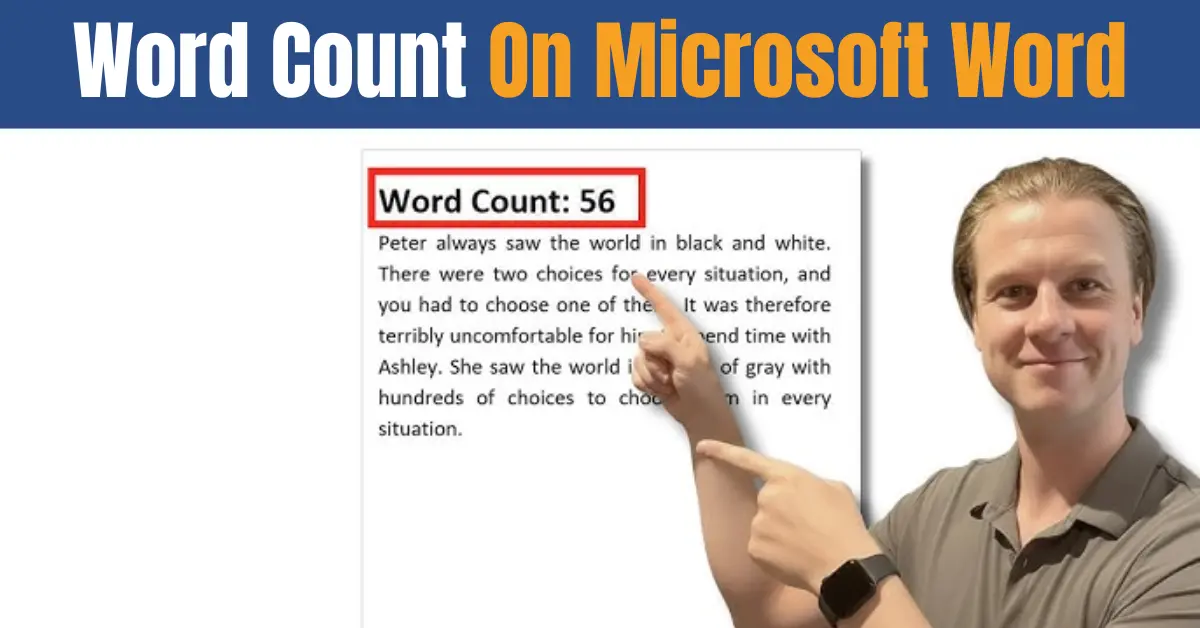
The feature known as word count on Microsoft Word helps users easily monitor how many words they have written without needing any external tools. This is especially helpful when working on tight deadlines or specific word requirements. It ensures that your content stays within the required limit while maintaining quality and structure.
In this guide, you will learn simple and effective methods to check word count in Microsoft Word. We will also explore useful tips and shortcuts that can improve your writing efficiency and save time while working on documents.
What is Word Count in Microsoft Word

Word count in Microsoft Word is a built in feature that helps users see the total number of words written in a document. It is especially useful for students, writers, bloggers, and professionals who need to meet specific writing requirements. Instead of manually counting words, Microsoft Word automatically calculates them in real time, making the writing process more efficient and accurate.
The word count feature does not only show the number of words. It also provides additional details such as the number of characters (with and without spaces), paragraphs, and pages. This gives users a complete overview of their document structure and length, which is helpful when editing or formatting content for different purposes.
For example, a student writing an essay can quickly check if they have met the required word limit. Similarly, a blogger or SEO writer can ensure their content is long enough to perform well on search engines while still staying readable and engaging. Businesses also rely on this feature when preparing reports, proposals, or official documents where precision matters.
Understanding word count on Microsoft Word is important because it helps maintain control over writing goals. It ensures that content is neither too short nor unnecessarily long, improving both clarity and effectiveness.
How to Check Word Count on Microsoft Word (Desktop)
If you are using Microsoft Word on a computer or laptop, checking the word count is very simple. The platform provides multiple easy ways to view your document’s length, so you can choose the method that works best for you.
Method 1 Using the Status Bar
The fastest way to see the word count is through the status bar at the bottom of the screen.
- Open your document in Microsoft Word
- Look at the bottom left corner of the window
- You will see the word count displayed automatically
This method is very useful because it updates in real time as you type. You do not need to click anything, which makes it perfect for quick tracking while writing.
Method 2 Using the Review Tab
If you want a more detailed breakdown of your document, you can use the Review tab.
- Go to the top menu and click on the “Review” tab
- Find and click the “Word Count” option
- A box will appear showing detailed information
This includes total words, characters with spaces, characters without spaces, paragraphs, and pages. It is helpful when you need precise document statistics for academic or professional work.
Method 3 Selecting Specific Text
Microsoft Word also allows you to check word count for a selected portion of text.
- Highlight the text you want to check
- Look at the status bar
- The word count for the selected text will appear
This feature is useful when you only need to measure a specific section instead of the whole document.
How to Check Word Count on Microsoft Word Mobile App
Microsoft Word is not only available on desktop computers but also on mobile devices. This makes it convenient for users who prefer writing or editing documents on the go. The mobile app includes a built in word count feature that is slightly different from the desktop version but still very easy to use.
To check the word count on the mobile app:
- Open your document in the Microsoft Word app on your phone
- Tap the “Edit” or “A” icon depending on your device
- Go to the “Home” or “Review” section in the menu
- Select “Word Count” from the options
Once you tap it, a detailed summary will appear showing the number of words, characters, and other useful document statistics. This helps you quickly understand the length of your content without needing a computer.
The mobile version is especially helpful for students and professionals who need to make quick edits or check their progress while traveling or working remotely. Although the interface is simpler than the desktop version, it still provides all the essential tools needed for tracking document length.
Understanding word count on Microsoft Word in the mobile app ensures you can manage your writing anytime and anywhere without interrupting your workflow.
Why Word Count on Microsoft Word May Differ from Other Tools
Sometimes users notice that the word count shown in Microsoft Word is slightly different from other writing tools or online word counters. This can be confusing, especially for students, bloggers, and professionals who rely on accurate counts for assignments or SEO content.
One common reason for this difference is how each tool defines a “word.” Microsoft Word may count certain elements like hyphenated words, numbers, or contractions differently compared to online tools. For example, some tools may treat “don’t” as one word, while others may count it differently depending on their rules.
Another factor is formatting. Hidden text, footnotes, endnotes, headers, and text boxes can sometimes be included in the word count in Microsoft Word. If these elements are not considered in other tools, the final numbers may not match.
Language settings can also play a role. If your document is set to a different language or has mixed formatting, it may slightly affect how words are calculated.
Understanding these small differences helps you use word count on Microsoft Word more effectively without worrying about minor variations. In most cases, the difference is not significant and does not affect the overall quality or purpose of your writing.
Tips to Manage Word Count Effectively
Managing word count is an important skill for anyone who writes regularly, whether for studies, blogging, SEO content, or professional documents. Microsoft Word makes it easy to track your progress, but using the right approach can help you stay more organized and efficient while writing.
One useful tip is to set a clear word target before you start writing. For example, if you need a 1000 word article, you can break it into sections and assign an approximate word limit to each part. This helps maintain balance and prevents you from writing too much or too little in one section.
Another helpful practice is to keep the word count visible while writing. Since word count on Microsoft Word updates in real time, you can easily monitor your progress without stopping your workflow. This is especially useful when working under deadlines.
It is also a good idea to write freely in the first draft without worrying too much about limits. Once your ideas are complete, you can go back and edit to adjust the word count, improve clarity, and remove unnecessary content.
Using focus or distraction free mode in Microsoft Word can also improve productivity. It helps you concentrate better, allowing you to write more efficiently and naturally meet your word goals.
With these simple techniques, you can better control your writing length while maintaining quality and structure in your documents.
Common Problems Users Face with Word Count
Even though Microsoft Word provides a reliable word counting feature, users sometimes run into issues that can cause confusion or inaccurate readings. Understanding these common problems can help you use the tool more effectively and avoid unnecessary frustration.
One frequent issue is when the word count does not appear in the status bar. This usually happens if the feature is disabled in settings or the document view is changed. In such cases, simply right clicking the status bar and enabling “Word Count” can fix the problem quickly.
Another common problem is incorrect or unexpected word count results in large or heavily formatted documents. Elements like tables, text boxes, headers, and footnotes may be included in the total count, which can make the number seem higher than expected. This is one reason why word count on Microsoft Word may sometimes differ from online tools.
Users also face issues when copying text from external sources like websites or PDFs. Hidden formatting or invisible characters can affect the word count and lead to inconsistencies. Clearing formatting or pasting as plain text often resolves this issue.
Lastly, outdated software versions can sometimes cause glitches in word counting accuracy. Keeping Microsoft Word updated ensures better performance and more reliable results.
By understanding these common issues, users can manage their documents more confidently and ensure their word count remains accurate and useful for writing tasks.
Conclusion
Tracking your writing length is an essential part of creating clear, structured, and goal oriented content. Whether you are a student working on assignments, a blogger writing articles, or a professional preparing reports, keeping an eye on your document size helps you stay organized and meet specific requirements more easily.
Microsoft Word makes this process simple with its built in tools that allow users to monitor their progress without any extra effort. The feature of word count on Microsoft Word ensures that you can quickly check how much you have written and adjust your content whenever needed. With real time updates and detailed breakdowns, it becomes much easier to maintain accuracy and control while writing.
By using the methods, tips, and solutions discussed in this guide, you can improve your writing efficiency and avoid common issues related to word counting. Over time, this helps you become more confident and productive in your writing tasks, whether for academic, personal, or professional use.
