

Introduction
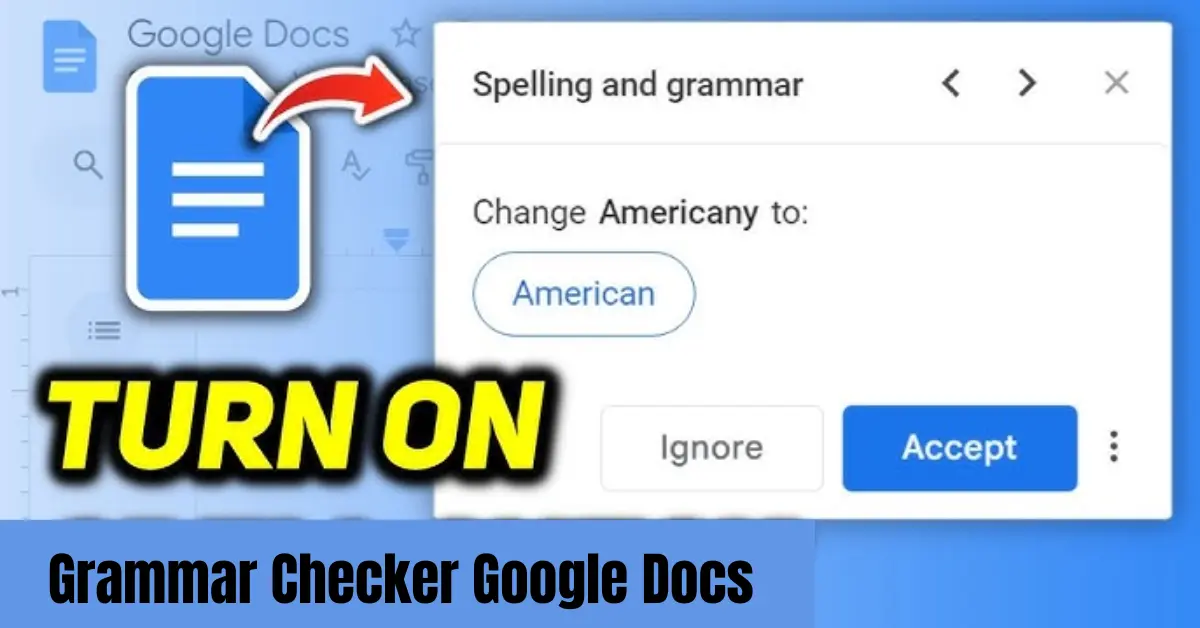
Writing clearly without grammar mistakes is important for students, professionals, and content creators because even small errors can reduce the quality and credibility of your work. In today’s digital world, many users depend on tools like Google Docs grammar check, Google grammar check, and Google spell check to quickly improve their writing and make it more accurate.
These built in tools help identify spelling issues, grammar mistakes, and sentence structure problems in real time, making the writing process easier and more efficient. In this guide, you will learn how to use these features effectively so you can create polished, error free content with confidence.
What is Google Docs Grammar Check
Google Docs grammar check is a built in writing assistance feature that helps users identify and correct grammar, spelling, and punctuation mistakes while typing. It works in real time, meaning it highlights errors as you write and suggests improvements instantly, making the editing process faster and more efficient.
This tool is part of the broader Google grammar system, which is designed to improve writing clarity and accuracy without needing any external software. When you use Google Docs grammar check, the system underlines potential mistakes using colored indicators and provides suggestions that you can accept or ignore based on your writing context.
Many users also refer to it as Google grammar check or Google correction, as it not only fixes spelling issues but also helps improve sentence structure and readability. For everyday writing tasks, from school assignments to professional documents, this feature ensures your content looks clean, polished, and easy to understand.
Overall, Google Docs grammar check is a simple yet powerful tool that supports better writing habits and reduces common language errors without requiring advanced grammar knowledge.
How Google Grammar Check Works
Google grammar check works through an automated writing assistance system that analyzes your text in real time while you type in Google Docs. It uses built in language processing to detect spelling mistakes, grammar issues, and sentence structure problems, then highlights them for quick correction.
When you make an error, Google Docs uses different colored underlines to guide you. A red underline usually indicates spelling mistakes, while a blue underline often points to grammar or sentence structure issues. By clicking on the highlighted word or sentence, you can view suggested corrections and apply them instantly.
The system behind Google grammar check is designed to understand context, not just individual words. This means it tries to identify whether a sentence makes sense as a whole, not only whether a word is spelled correctly. Along with Google spell check, it helps ensure that your writing is accurate, readable, and professional.
In addition, Google correction features continuously learn from language patterns to improve suggestion accuracy. This makes the tool especially useful for students, writers, and professionals who want to produce error free content quickly without manually reviewing every sentence.
How to Enable Google Docs Grammar Check
Using Google Docs grammar check is simple, but many users do not realize it may need to be enabled depending on their settings. Once activated, it can significantly improve your writing experience by automatically detecting errors as you type.
To enable it, first open your document in Google Docs. Then go to the Tools menu at the top of the page. From there, select Spelling and grammar. You will see options that allow you to turn on features such as showing spelling suggestions and grammar suggestions.
Make sure both spelling suggestions and grammar suggestions are checked. Once enabled, Google Docs will start highlighting mistakes automatically using its built in Google spell check and Google grammar check system.
After activation, you will notice real time Google correction suggestions appearing while you write. This helps you fix errors instantly instead of reviewing your document manually at the end.
By properly enabling these features, you ensure that Google Docs works as a powerful writing assistant that supports clean, accurate, and professional content creation.
Best Ways to Use Google Docs for Grammar Improvement
Using Google Docs grammar check effectively is not just about turning it on, but also about developing smart writing habits that improve your overall content quality. When used correctly, Google grammar check and Google spell check can significantly enhance the clarity and professionalism of your writing.
One of the best practices is to focus on writing freely first without worrying too much about mistakes. Once your draft is complete, you can rely on Google Docs grammar check to highlight errors and suggest corrections. This helps you stay creative during writing and accurate during editing.
Another effective method is to carefully review each suggestion instead of accepting all changes automatically. While Google correction tools are helpful, they may not always understand the exact meaning or tone you want to express.
You can also combine Google grammar features with manual proofreading. Reading your content aloud helps you catch errors that automated tools might miss. This combination of human review and smart tools creates more polished and natural writing.
For best results, use Google grammar check as a support tool rather than a complete replacement for writing skills. Over time, this approach not only improves your documents but also helps you become a better writer.
Common Issues with Google Grammar Check
Although Google Docs grammar check is a useful tool for improving writing, it is not perfect and has certain limitations that users should understand. Relying only on Google grammar check or Google spell check can sometimes lead to overlooked or incorrect suggestions.
One common issue is that the tool may not always understand context correctly. In some cases, Google correction suggestions can change the meaning of a sentence or recommend edits that do not match the writer’s intent. This is especially noticeable in complex or creative writing.
Another limitation is that Google grammar features may miss advanced grammatical errors. While it is effective for basic spelling and sentence structure issues, it does not always detect deeper writing problems such as tone inconsistency or advanced syntax errors.
Additionally, users may sometimes become overly dependent on automated tools like Google Docs grammar check, which can reduce their own grammar learning and editing skills over time.
Because of these limitations, it is always recommended to use Google spell check and grammar tools as a supporting assistant rather than a complete solution. Combining them with manual proofreading ensures more accurate, natural, and professional writing.
Google Docs Spell Check vs Grammar Check
Google Docs offers both spell check and grammar check features, and understanding the difference between them helps you improve your writing more effectively.
Google spell check focuses mainly on identifying and correcting spelling mistakes. When you type a word incorrectly, it highlights it with a red underline and suggests the correct spelling. This feature is especially useful for avoiding simple typing errors and improving word accuracy.
On the other hand, Google Docs grammar check goes beyond spelling. It analyzes sentence structure, punctuation, and grammar usage to suggest improvements that make your writing clearer and more professional. It may also recommend rephrasing sentences for better readability.
While Google grammar check helps refine the overall quality of your writing, Google spell check ensures that individual words are correct. When used together, these tools create a strong editing system that supports clean and error free content.
Many users also refer to both features collectively as Google correction tools because they work together to improve writing accuracy and clarity in real time.
Tips to Improve Writing Beyond Google Grammar Tools
While Google Docs grammar check is helpful, relying only on automated tools is not enough to develop strong writing skills. To create truly clear and professional content, it is important to go beyond Google grammar check and build better writing habits.
One effective tip is to always review your content manually after using Google spell check. Reading your text slowly helps you catch errors that automated Google correction tools may miss, especially in tone or meaning.
Another useful practice is to write in simple and clear sentences. Even though Google Docs grammar check can suggest improvements, simple writing naturally reduces the chances of grammar mistakes and improves readability.
It is also helpful to read more quality content regularly. This improves your understanding of sentence structure and helps you write more naturally, reducing dependency on Google grammar tools over time.
Finally, do not rely completely on Google grammar check for learning. Use it as a support system while also practicing grammar rules yourself. This combination helps you become a more confident and skilled writer in the long run.
Who Should Use Google Grammar and Spell Check
Google Docs grammar check and spell check tools are designed for anyone who wants to improve writing accuracy and create error free content quickly. These tools are simple, accessible, and useful for a wide range of users.
Students are one of the main groups who benefit from Google Docs grammar check. Whether they are writing essays, assignments, or research papers, Google spell check helps them avoid common spelling and grammar mistakes and submit better quality work.
Content writers and bloggers also rely on Google grammar check to ensure their articles are clear, readable, and professional. It helps them polish drafts quickly before publishing online.
Professionals in offices use Google correction tools to improve emails, reports, and presentations. Clear and correct writing helps maintain a strong professional image.
Freelancers and marketers also find Google grammar features useful when creating content for clients or digital platforms. It helps them save time while maintaining writing quality.
Overall, anyone who writes regularly can benefit from Google Docs grammar check and related tools, as they make writing faster, easier, and more accurate.
Conclusion
Google Docs grammar check, along with Google spell check and Google grammar check, provides a simple and effective way to improve writing quality for everyday users. These built in tools help identify spelling mistakes, grammar issues, and sentence structure problems in real time, making the editing process faster and more efficient.
However, while Google correction features are powerful, they should not replace human judgment. The best results come from combining these tools with manual proofreading and good writing practices. This balance ensures your content remains accurate, natural, and easy to understand.
Whether you are a student, professional, or content creator, using Google grammar check effectively can significantly enhance your writing clarity and confidence.
